Aadhaar card has become an essential identity document for every Indian citizen. This 12-digit unique identification number issued by UIDAI is required for almost everything – from opening bank accounts to filing tax returns. If you need to Aadhaar download quickly, this comprehensive guide will walk you through every method available.
Download Aadhaar Card
Understanding e-Aadhaar
e-Aadhaar is the digital version of your physical Aadhaar card, electronically signed by UIDAI. It contains all your essential information including your Aadhaar number, residential address, date of birth, gender, and photograph.
Two Types of Aadhaar You Can Download:
1. Regular Aadhaar
Displays all 12 digits of your Aadhaar number clearly
2. Masked Aadhaar
Shows only the last 4 digits for enhanced privacy and security
Both versions are downloaded as password-protected PDF files.
How to Open Your Downloaded PDF?
The password format is simple:
First 4 letters of your name (in CAPITALS) + Your birth year
Examples:
- Name: PRIYA SINGH, Birth Year: 1992 → Password: PRIY1992
- Name: AMIT PATEL, Birth Year: 1985 → Password: AMIT1985
- Name: SUNITA ROY, Birth Year: 1978 → Password: SUNI1978
What You Need for Aadhaar Download
Before you start, make sure you have:
- ✓ Aadhaar Number (UID), Enrolment ID (EID), or Virtual ID (VID)
- ✓ Mobile number linked to your Aadhaar
- ✓ PDF reader installed on your device
- ✓ Active internet connection
3 Proven Methods to Download Your Aadhaar
Method 1: Download from UIDAI Official Website
This is the most trusted and widely used method for my Aadhaar download.
Step-by-Step Instructions:
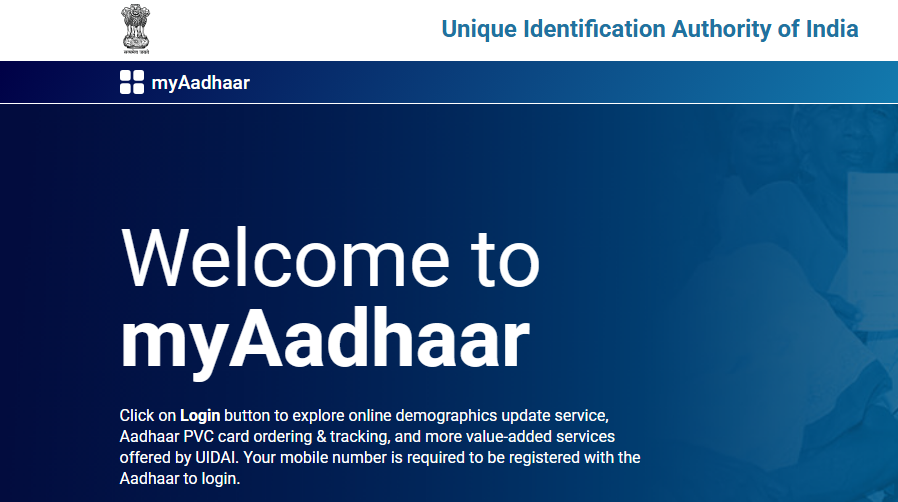
Step 1: Open your browser and visit https://myaadhaar.uidai.gov.in/
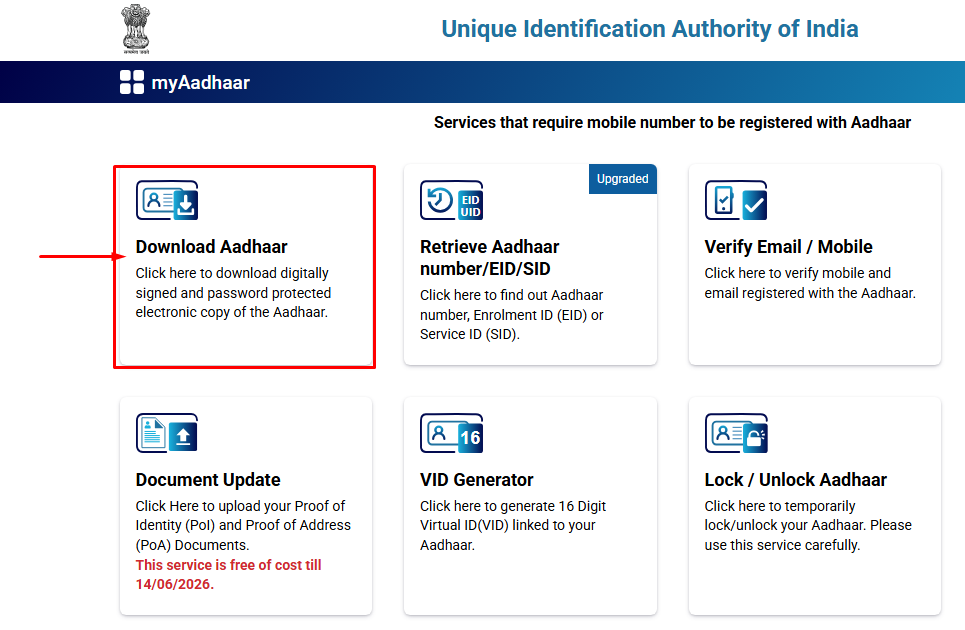
Step 2: Locate and click on “Download Aadhaar” (found under the “My Aadhaar” section or main page)
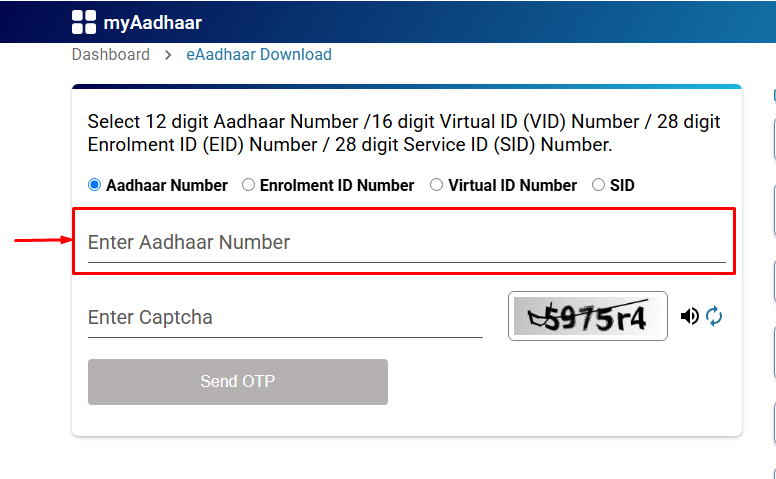
Step 3: Choose your preferred input option:
- Aadhaar Number: Enter your 12-digit Aadhaar number
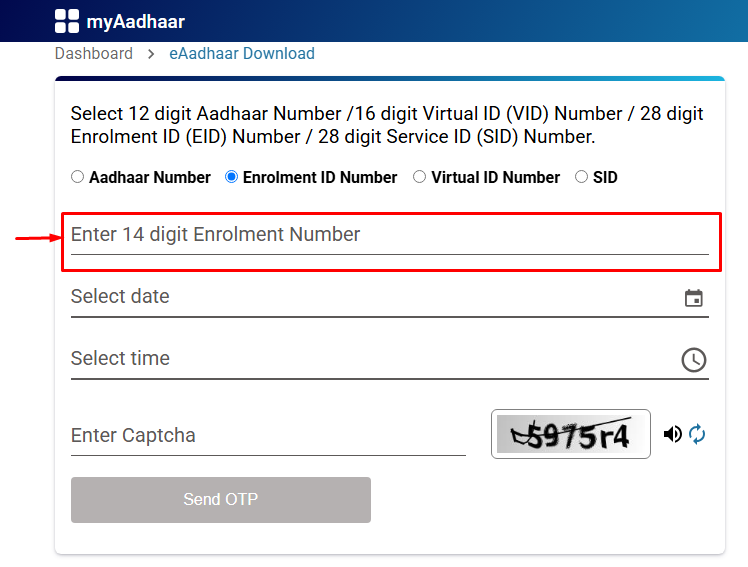
- Enrolment ID: Enter the 28-digit EID from your enrolment slip
Step 4: Fill in the required details:
- Full name (exactly as registered in Aadhaar database)
- Pin code of your registered address
- Captcha code displayed on screen
Step 5: Click “Send OTP” button
Step 6: Check your registered mobile number for the OTP
Step 7: Enter the OTP and click “Verify & Download”
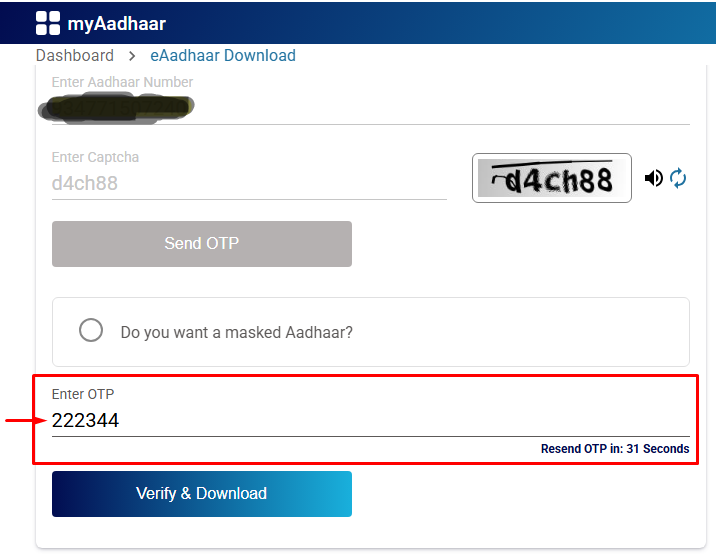
Step 8: Your Aadhaar will download as a PDF file. Use the password formula mentioned above to open it.
⏱️ Time Required: 2-3 minutes
📱 OTP Valid For: 10 minutes
Method 2: Download Using myAadhaar Mobile App
The easiest way for my Aadhaar download on your smartphone.
Installation:
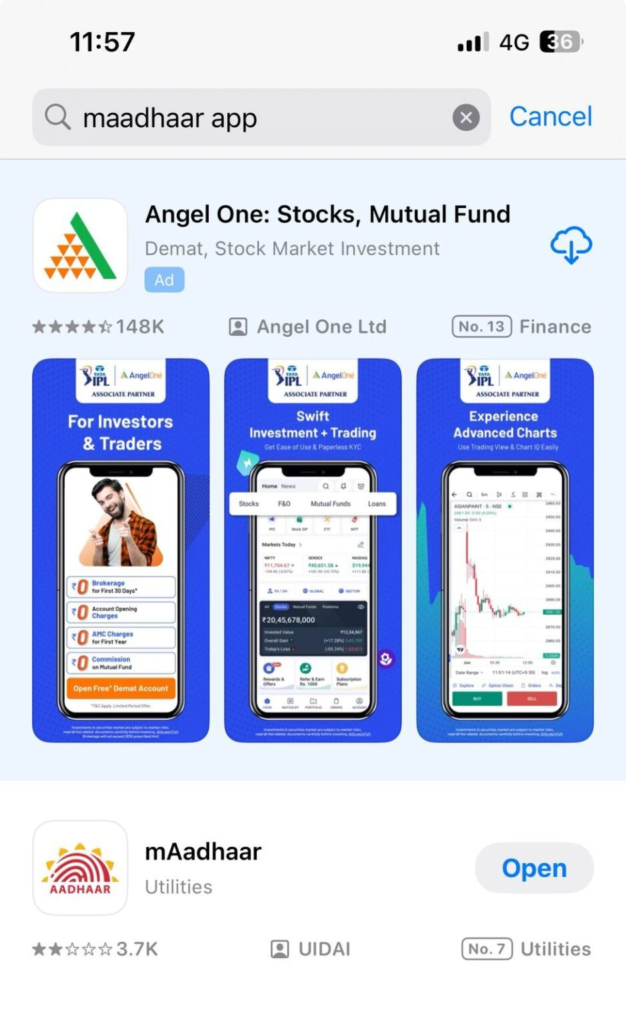
Download “myAadhaar” app from:
- Android users: Google Play Store
- iOS users: Apple App Store
First-Time Setup:
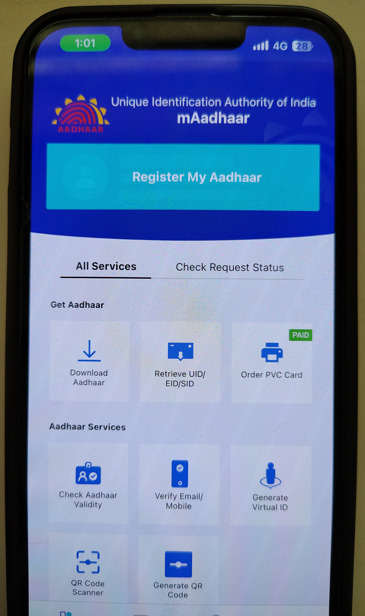
Step 1: Open the app and tap “Register My Aadhaar”
Step 2: Enter your 12-digit Aadhaar number
Step 3: Type the security code (captcha) shown on screen
Step 4: Tap “Send OTP” – you’ll receive it on your registered mobile
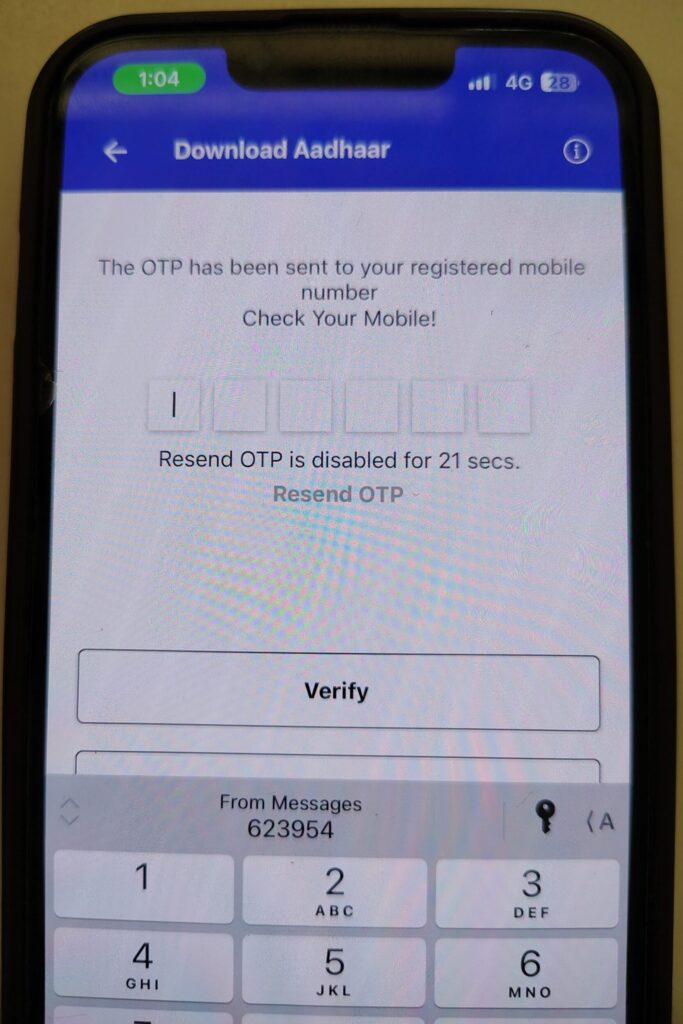
Step 5: Enter the OTP to verify your identity
Step 6: Create a 4-digit password for app security (this is different from PDF password)
Downloading Your Aadhaar:
Step 1: Once registered, your Aadhaar profile appears on the home screen
Step 2: Tap on “Download Aadhaar” option
Step 3: The app fetches your details automatically
Step 4: Your e-Aadhaar PDF downloads and saves in the app
Step 5: You can also save it to your phone’s storage for easy access
💡 Pro Tip: The app stores your Aadhaar securely, so you don’t need to download it repeatedly.
Method 3: Retrieve Lost Aadhaar Number First, Then Download
Forgot your Aadhaar number? No problem. Use this method to recover it first.
Retrieving Your UID/EID:
Step 1: Visit https://myaadhaar.uidai.gov.in/retrieve-uid-eid
Step 2: Select what you want to retrieve:
- Aadhaar Number (UID), or
- Enrolment Number (EID)
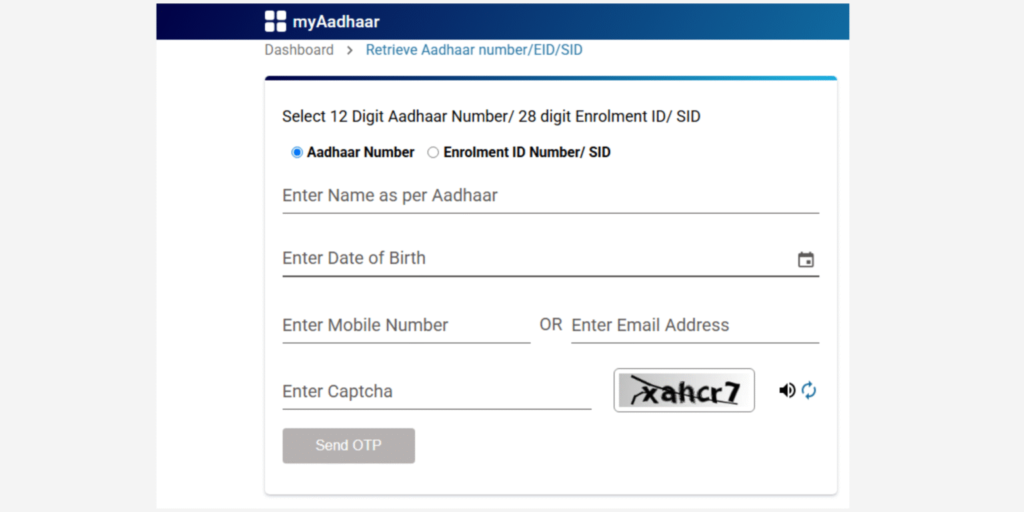
Step 3: Enter the following information:
- Your full name
- Pin code
- Registered mobile number OR email address
- Security code (captcha)
Step 4: Click “Send OTP”
Step 5: Enter the OTP you receive
Step 6: Click “Verify OTP”
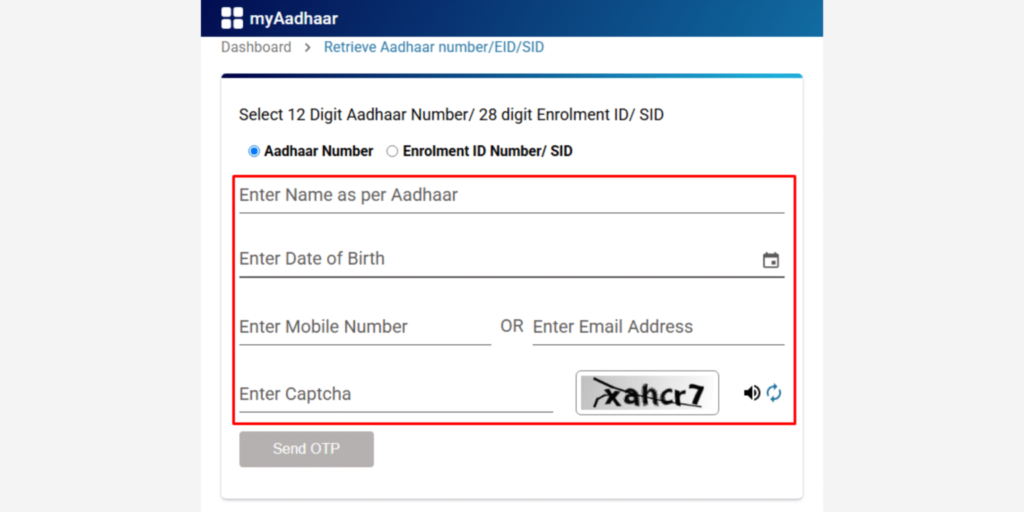
Step 7: Your Aadhaar Number or Enrolment ID will be sent to your registered mobile and email
After Retrieval:
Once you receive your UID/EID, use Method 1 or Method 2 above to download your Aadhaar card.
📧 Delivery Time: Instant (within 1-2 minutes)
Common Issues & Solutions
Problem: Not receiving OTP
Solution: Ensure your mobile number is linked to Aadhaar. Visit nearest Aadhaar center to update.
Problem: Wrong password error when opening PDF
Solution: Double-check the spelling of your name. Use EXACTLY the first 4 letters in CAPITALS.
Problem: Download link not working
Solution: Try a different browser or clear your cache and cookies.
Problem: Name spelling different in Aadhaar
Solution: Use the exact spelling as per your Aadhaar record, not your current usage.